01
Enter the rules that matter
Set required staffing, days off, locked assignments, weekly shift limits, and consecutive workday limits.
Enter required staffing, days off, locked assignments, weekly shift limits, and consecutive-day limits. Get a first draft you can review, edit, rerun, and export as CSV.
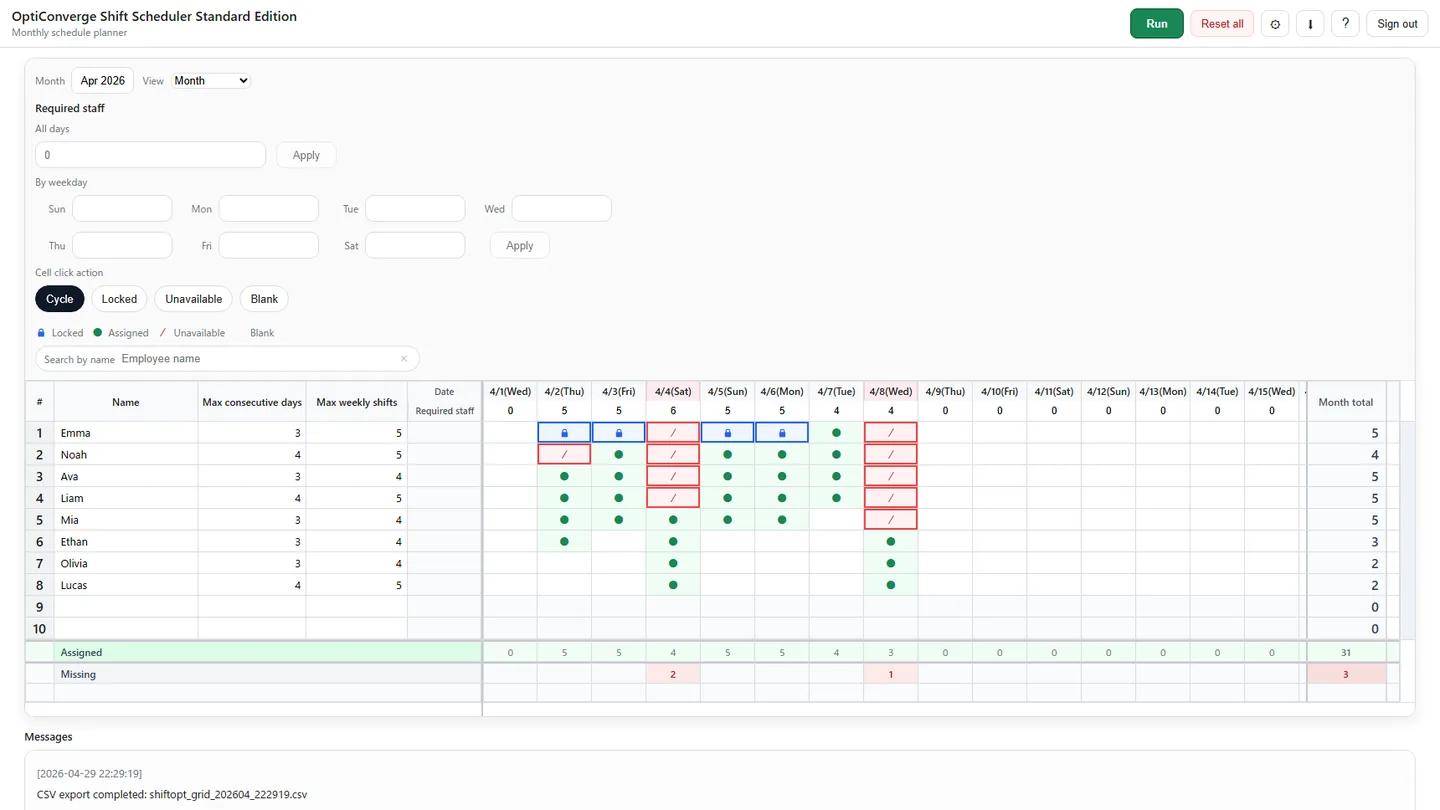
Watch how to enter staffing requirements, run the scheduler, identify staffing gaps, adjust the draft, and export CSV.
When required staffing, days off, locked assignments, weekly shift limits, and consecutive-day limits interact, one change can create another problem elsewhere.
Set required staffing, days off, locked assignments, weekly shift limits, and consecutive workday limits.
Select Run. The scheduler combines the entered rules and works to keep assignments as balanced as those rules allow.
Check staffing levels and assignments, edit the grid, and select Run again when the information changes.
Employees stay in rows and dates stay in columns, reducing the need to learn a completely different scheduling workflow.
Nothing becomes final until the manager reviews it. The scheduler creates a starting point; the manager decides what becomes the schedule.
Excel works for simple schedules. Choose more help only when the rules and repeated adjustments have become difficult to manage.
A spreadsheet may be enough when few rules need to be checked.
For teams that want an automatic first draft they can review and edit.
A broader system may fit when scheduling must be combined with payroll, attendance, and wider workflows.
Sign in to use the Standard Edition. No paid plan decision is needed to try the scheduling workflow.
Opens the Standard Edition sign-in page.
Create a free schedule draftCurrent scope, direct answers.
It creates a first employee shift schedule draft from required staffing, days off, locked assignments, weekly shift limits, and consecutive-day limits. You review and edit the result before deciding whether to use it.
The Standard Edition supports required staffing, days off or unavailable days, locked assignments, weekly shift limits, and consecutive workday limits. Locked is the label used in the grid for an assignment that should stay in place.
No. The draft is created from the staffing needs and work rules entered in the app. The scheduler also works to keep assignments as balanced as those rules allow.
Yes. Edit assignments directly in the spreadsheet-like grid, then select Run again to create a new draft from the updated information.
No. Excel-like describes the familiar grid layout. The Standard Edition does not support Excel import.
The free beta supports up to 20 employees, schedule-draft creation, manager review and manual editing, running the scheduler again after changes, and CSV export.
The Standard Edition creates month- or week-view staff assignment drafts. It is focused on creating and revising schedules rather than payroll or time tracking.
Use the free beta for teams of up to 20 employees.